はじめに
今回は「Notionに貯めた情報をDifyに自動で登録できたら便利じゃない?」ということで、GAS(Google Apps Script)を使ってそれを実現してみました。 結論から言うと、思ったより簡単にできました! この記事では、その手順とポイントをわかりやすくまとめています。
環境(使ったもの)
- Notion(社内ナレッジ用)
- Google Apps Script(GAS)
- Dify(生成AIアプリ基盤)
事前準備
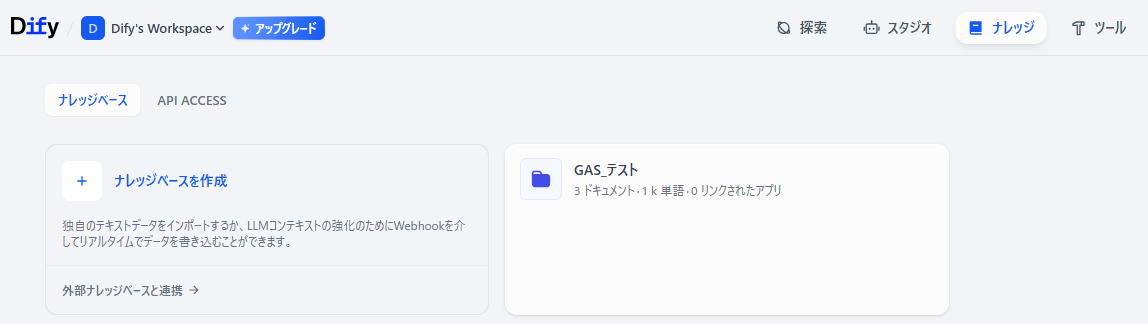
- Difyのナレッジベース
- 今回は「GAS_テスト」という名前で作成しています。
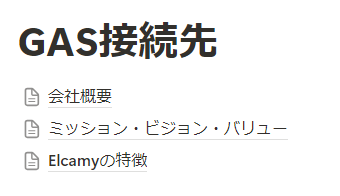
- Difyのナレッジベースに登録したいコンテンツをまとめたNotionページ
- 今回は「GAS接続先」というページに3つの子ページを作成しています。
本編
やりたいこと
以下のような流れで、Notionページの情報をDifyのナレッジベースに登録していきます。
手順
- Notionインテグレーションの設定
- NotionページIDをCSVに保存
- Notionページからコンテンツを取得
- Difyナレッジに登録
Step 1:Notionインテグレーションの設定
まず、GASからNotionにアクセスするための準備をします。 GASがNotionに接続するためには、Notionのインテグレーションを設定する必要があります。
この設定は、Notionのワークスペースのメンバーが行ってください。
-
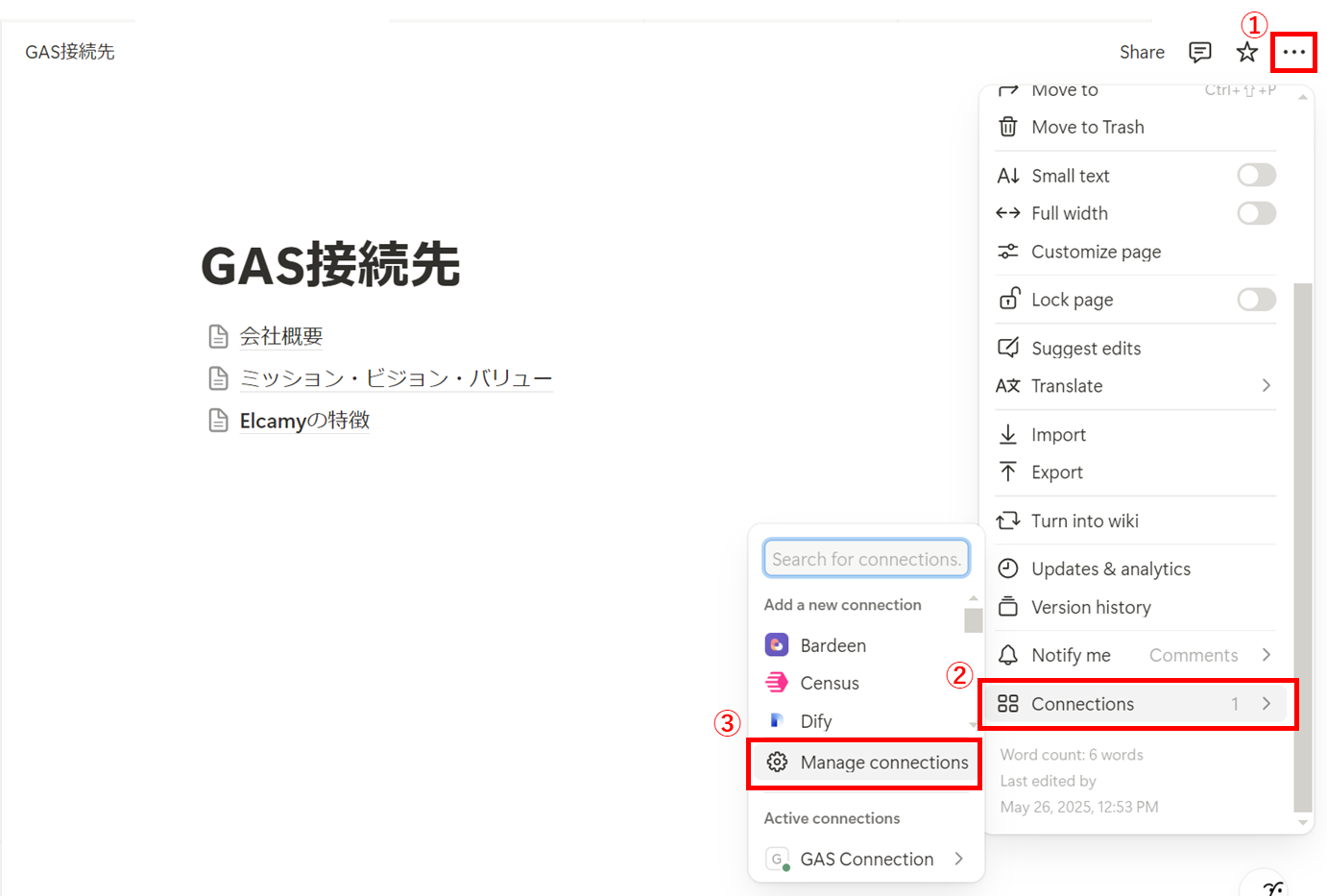
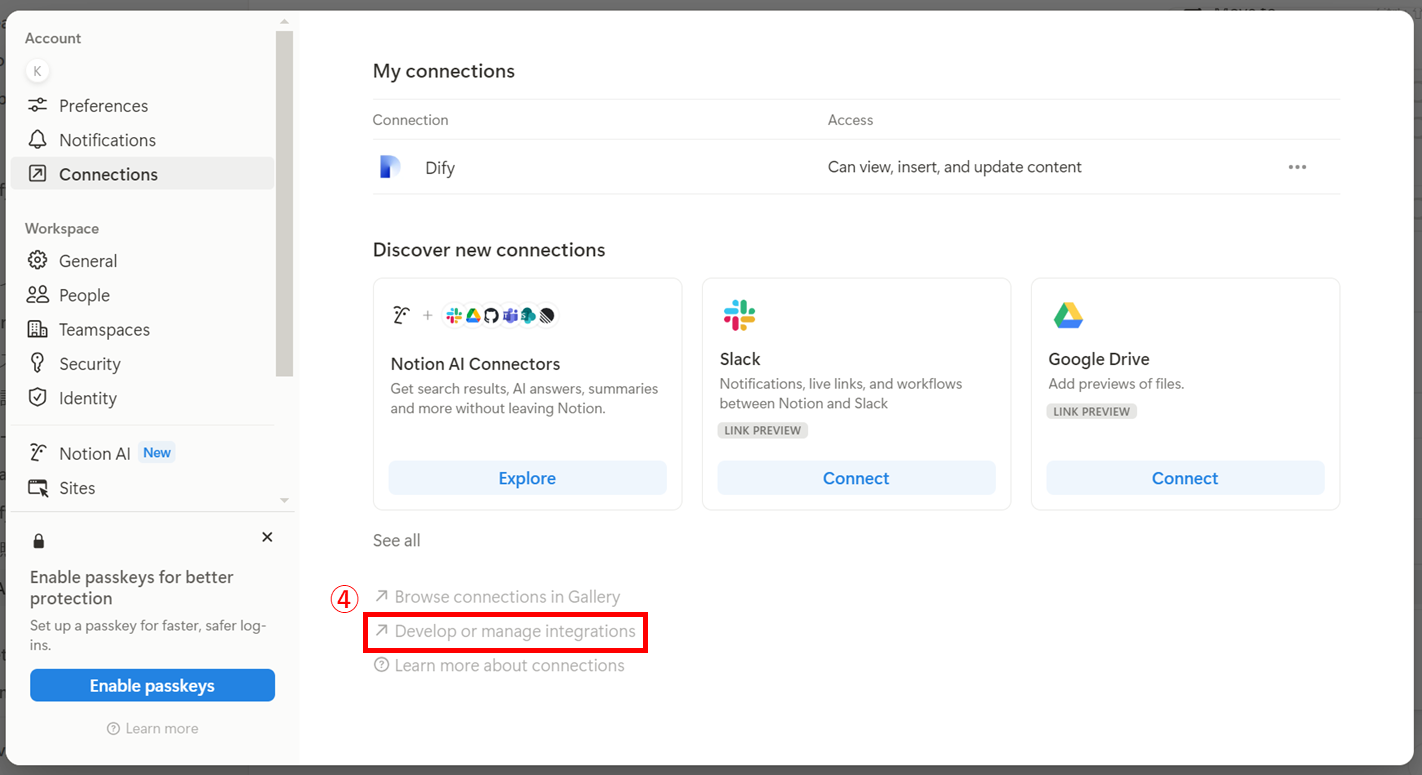
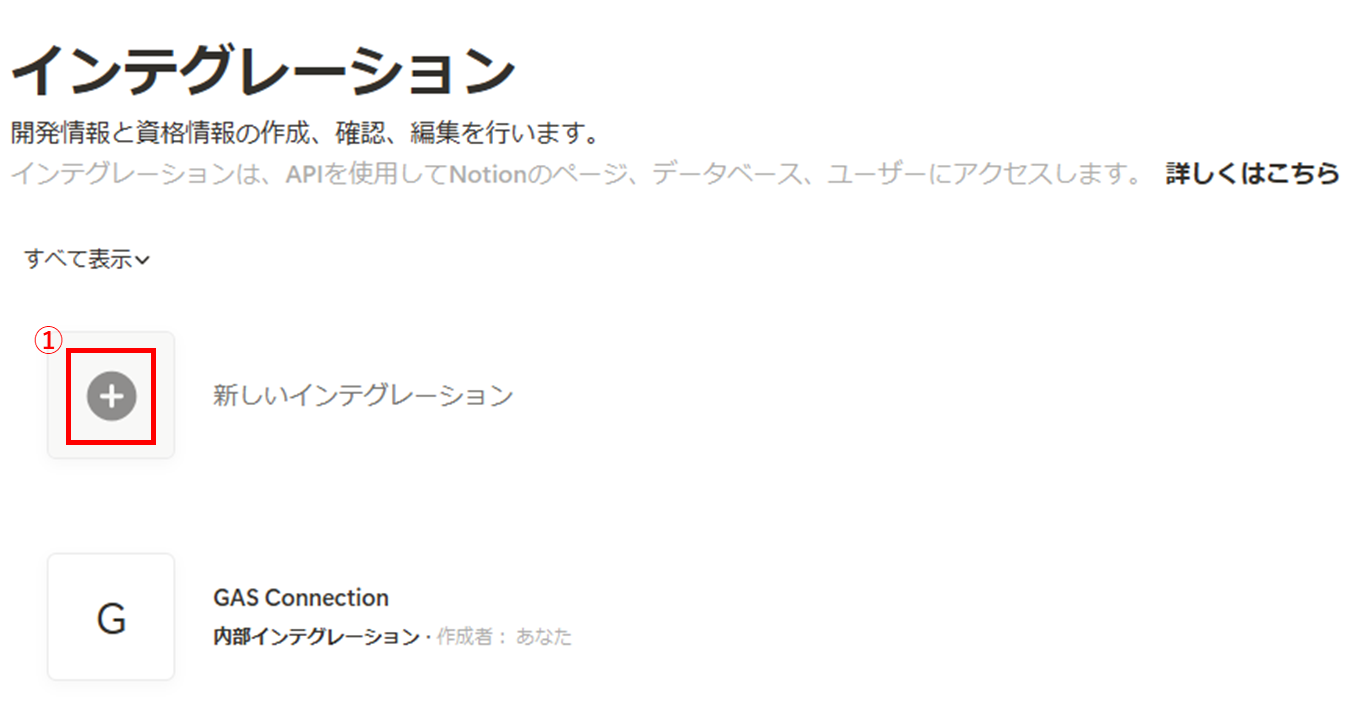
インテグレーションの管理ページに移動します。
-
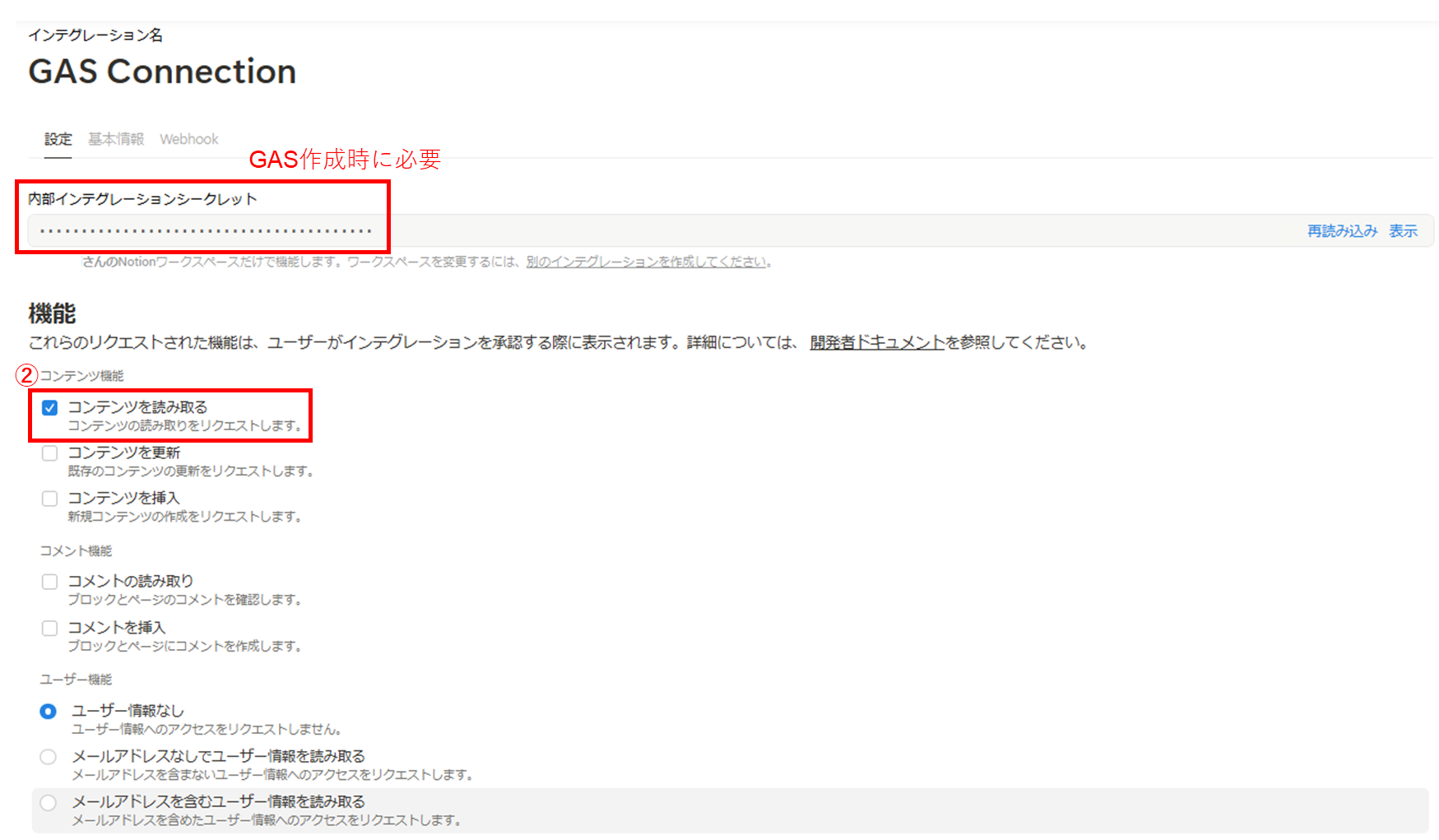
次に、インテグレーションの設定を行います。 今回はNotionページの**「コンテンツを読み取る」**機能だけで問題ありません。 **「内部インテグレーションシークレット」**はGASから接続する際に必要となります。
-
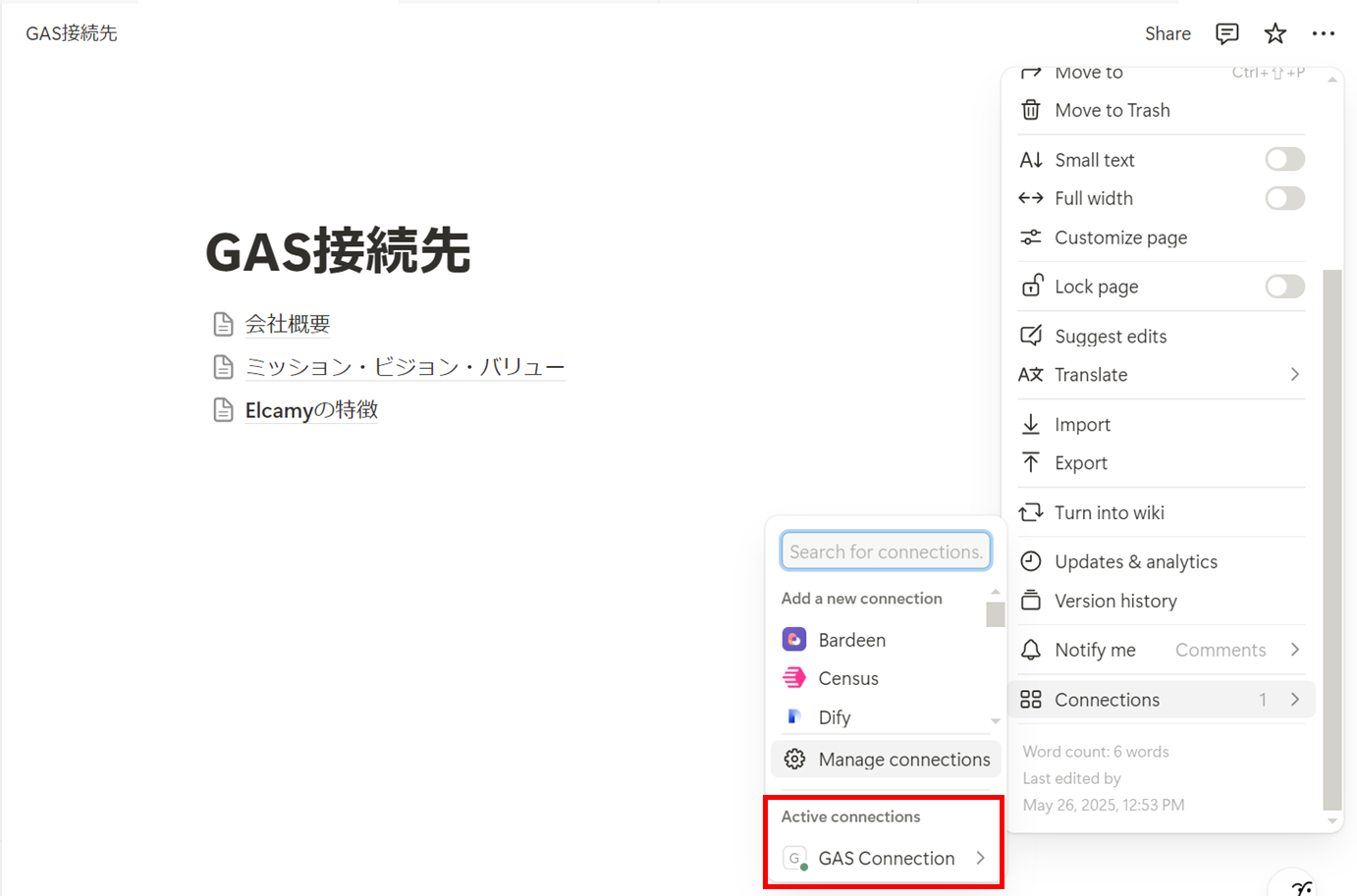
設定が完了すると、作成したインテグレーションが「Active connections」に表示されます。
Step 2:Notion 子ページのIDをCSVに保存
続いて、Notionの親ページの下にある子ページのIDを取得して、CSV形式でGoogle Driveに保存します。 今回は下記3つのGASのコードに分けています。
| ファイル名 | 内容 |
|---|---|
| common.gs | store_notion_id.gsとregister_dify_knowledge.gsに共通する設定や関数 |
| store_notion_id.gs | Notion APIを使ってNotionページIDを取得し、CSVファイルに保存する |
| register_dify_knowledge.gs | Notion APIを使ってNotionページのコンテンツを取得し、DifyナレッジAPIを使ってナレッジベースに登録する |
-
まず、スプレッドシートからApps Scriptを開きます。
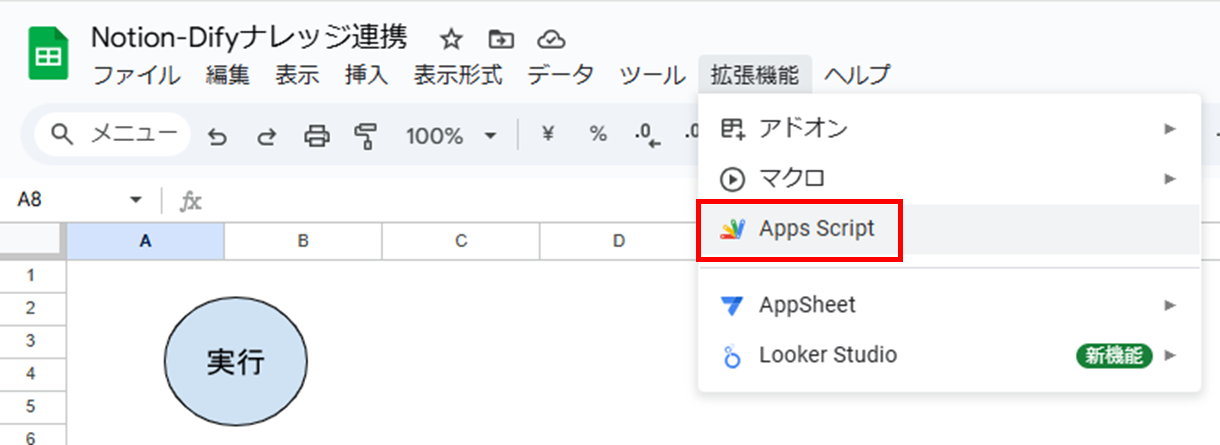
-
次に、
common.gsにNotionの「内部インテグレーションシークレット」を記載します。common.gsjavascriptconst NOTION_TOKEN = "*"; // このケースではGAS Connectionからコピペ -
続いて、
store_notion_id.gsに必要な設定を記載します。store_notion_id.gsjavascript// store_notion_id.gsだけで使う変数 const PAGE_ID = "*" // Notionページ「GAS接続先」のページID const FOLDER_ID = "*" // CSVファイルを保存するフォルダのID // Notion子ページのIDを取得してCSVに保存する関数 // 1列目: NotionページID // 2列目: ページタイトル(Difyナレッジ登録に必要ではないが、IDとタイトルの対応を確認するために使用) function getChildPageIds() { const url = `https://api.notion.com/v1/blocks/${PAGE_ID}/children?page_size=100`; const options = { method: "get", headers: { "Authorization": `Bearer ${NOTION_TOKEN}`, "Notion-Version": "2022-06-28", "Content-Type": "application/json" } }; const response = UrlFetchApp.fetch(url, options); const json = JSON.parse(response.getContentText()); const pageIds = []; json.results.forEach(block => { if (block.type === "child_page") { pageIds.push({ id: block.id, title: block.child_page.title }); } }); saveAsCsv(pageIds); } // CSVに保存する関数 function saveAsCsv(data) { const csv = data.map(row => `"${row.id}","${row.title}"`).join("\n"); const folder = DriveApp.getFolderById(`${FOLDER_ID}`); const fileName = `notion_child_pages_${new Date().toISOString()}.csv`; folder.createFile(fileName, csv, MimeType.CSV); }
PAGE_IDは、NotionページIDはURLに記載されている32桁の英数字です。
FOLDER_IDは、CSVファイルを保存するGoogle DriveフォルダのURLの drive.google.com/drive/folders/ に続く英数字です。
- NotionページID
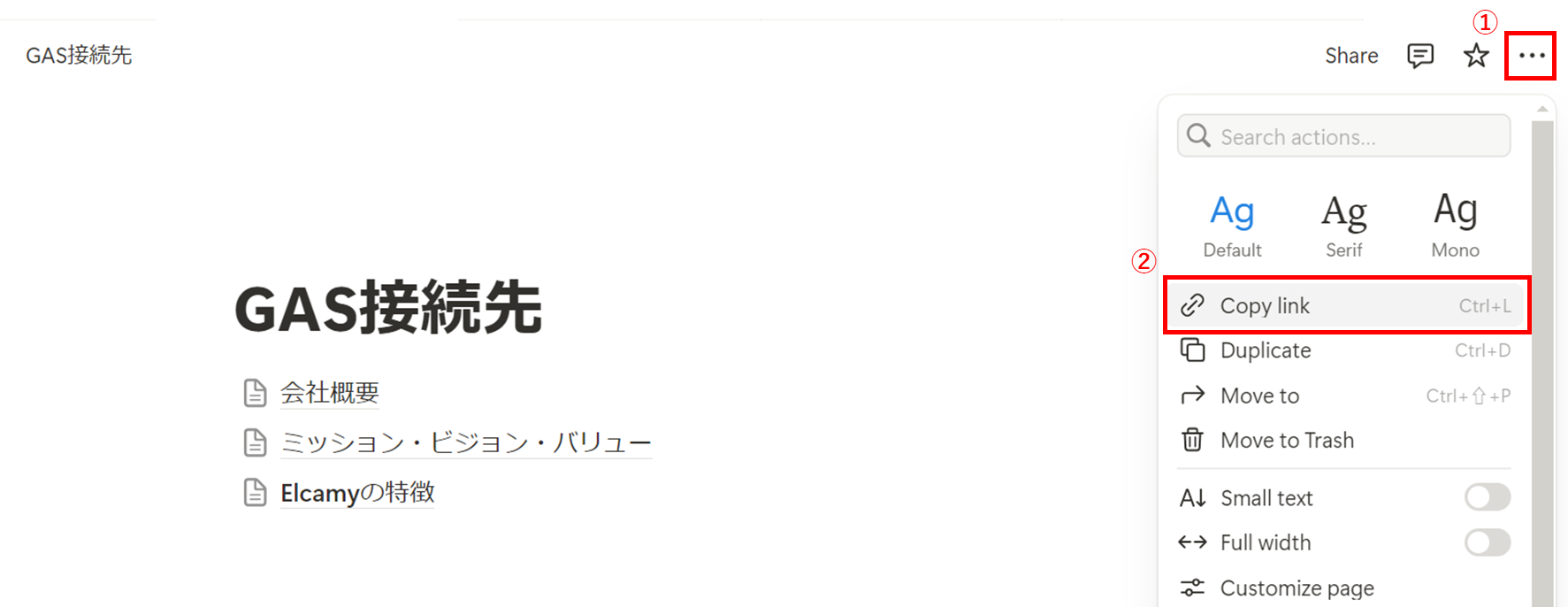
https://www.notion.so/GAS-{NotionページID(32桁)}?pvs=4
- Google DriveフォルダのID
https://drive.google.com/drive/folders/{Google DriveフォルダのID}
Step 3:Notionページからコンテンツを取得
次に、保存されたCSVからNotionページIDを読み込み、それぞれのページの中身を取得します。
先ほどのステップで取得したNotionページIDからコンテンツを取得する処理を register_dify_knowledge.gs に記載します。
-
まず、CSVファイルからNotionページのIDを取得します。
javascript// (1) CSVファイルからIDリストを取得 function getPageIdsFromCsv() { const fileId = '*'; // Googleドライブ上のCSVファイルID const file = DriveApp.getFileById(fileId); const csv = Utilities.parseCsv(file.getBlob().getDataAsString()); const ids = []; for (let i = 0; i < csv.length; i++) { // ヘッダなし ids.push(csv[i][0]); // 1列目にNotionのページIDがある前提 } return ids; }
fileIdには、対象のCSVファイルのIDをベタ書きしています。
このIDはCSVファイルのURLの drive.google.com/file/d/ に続く英数字です。
- CSVファイルのID
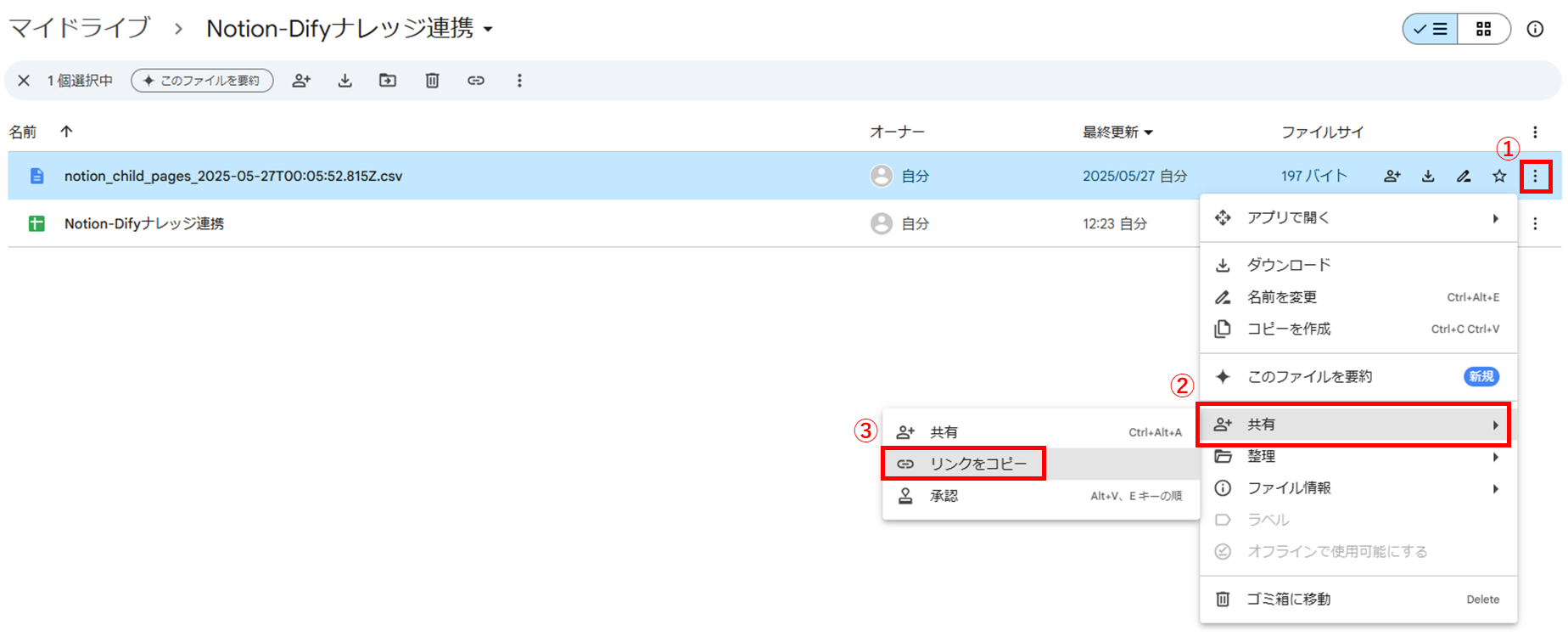
https://drive.google.com/file/d/{CSVファイルのID}/view?usp=drive_link
- NotionページIDに対応するコンテンツを取得する処理を記載しています。 今回は以下のブロックタイプのコンテンツを対象とします。
- paragraph
- heading_1, heading_2, heading_3
- bulleted_list_item, numbered_list_item
// (2) Notion APIで本文取得
function fetchNotionPageContent(pageId) {
const url = `https://api.notion.com/v1/blocks/${pageId}/children`;
const options = {
method: 'get',
headers: {
'Authorization': `Bearer ${NOTION_TOKEN}`,
'Notion-Version': '2022-06-28'
}
};
const response = UrlFetchApp.fetch(url, options);
const data = JSON.parse(response.getContentText());
const target_blocktypes = [
"paragraph",
"heading_1",
"heading_2",
"heading_3",
"bulleted_list_item",
"numbered_list_item"
]
let textContent = '';
for (const block of data.results) {
if (!target_blocktypes.includes(block.type)) {
continue; // 対象外はスキップ
}
// 各タイプごとにrich_text配列を取り出す
let richTexts = [];
switch(block.type) {
case "paragraph":
if (block.paragraph && block.paragraph.rich_text) {
richTexts = block.paragraph.rich_text;
}
break;
case "heading_1":
case "heading_2":
case "heading_3":
if (block[block.type] && block[block.type].rich_text) {
richTexts = block[block.type].rich_text;
}
break;
case "bulleted_list_item":
case "numbered_list_item":
if (block[block.type] && block[block.type].rich_text) {
richTexts = block[block.type].rich_text;
}
break;
}
// richTextsが空でなければテキストを抽出
if (richTexts.length > 0) {
textContent += richTexts.map(t => t.plain_text).join('') + '\n';
}
}
Logger.log(textContent);
return textContent;
}Step 4:Difyナレッジに登録
最後は、DifyのAPIを使って、Notionのテキストをナレッジベースに登録します。
NotionページのコンテンツをページごとにDifyナレッジベースに登録する処理をregister_dify_knowledge.gs に記載します。
今後、Notionページごとに更新や削除などができるよう、Difyナレッジのタイトル(ファイル名)はNotionページIDとします。
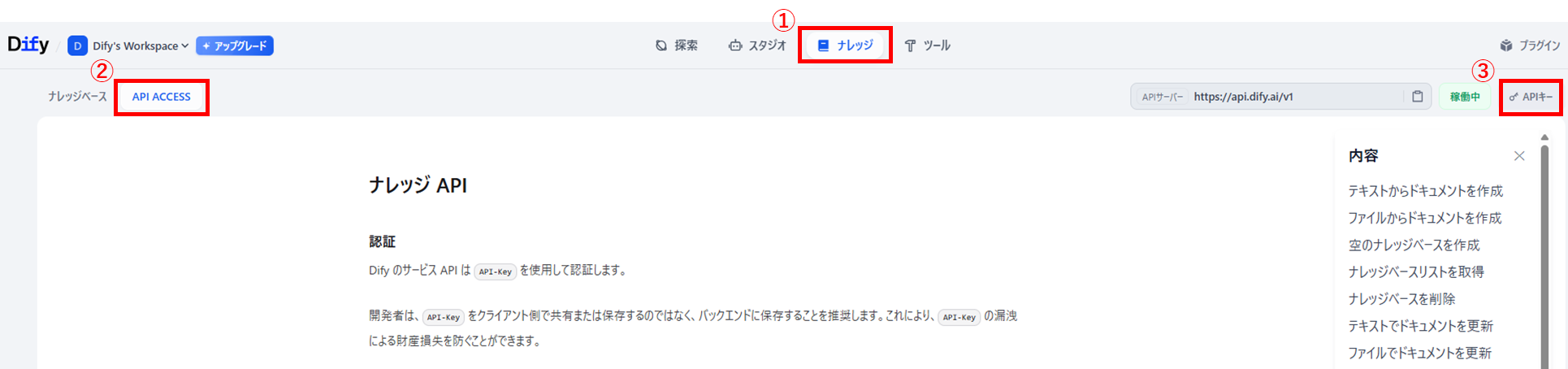
- まず、GASからDifyナレッジベースに接続するために必要な情報を
register_dify_knowledge.gsに記載します。
- DifyナレッジAPIキー
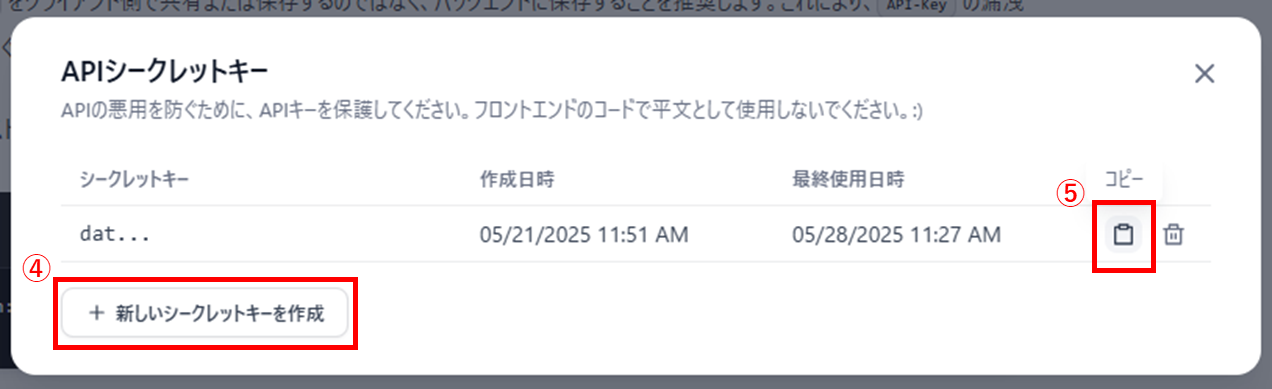
- DifyナレッジベースID
ナレッジベースのURLの
cloud.dify.ai/datasets/に続く英数字です。
https://cloud.dify.ai/datasets/{ナレッジベースID}/documents
register_dify_knowledge.gs
// register_dify_knowledge.gsだけで使う変数
const DIFY_KNOWLEDGE_TOKEN = 'dataset-*'; // DifyナレッジAPIキー
const DIFY_KNOWLEDGE_ID = '*'; // DifyナレッジベースID-
次に、DifyナレッジにNotionページのコンテンツを登録する処理を記載します。
javascript// (3) Difyナレッジに登録 function uploadToDifyKnowledge(title, content) { const url = `https://api.dify.ai/v1/datasets/${DIFY_KNOWLEDGE_ID}/document/create_by_text`; const options = { method: 'post', contentType: 'application/json', headers: { 'Authorization': `Bearer ${DIFY_KNOWLEDGE_TOKEN}` }, payload: JSON.stringify({ name: title, text: content, indexing_technique: 'high_quality', process_rule: {"mode": "automatic"} }) }; const response = UrlFetchApp.fetch(url, options); }
GASの全体像
common.gs
const NOTION_TOKEN = "*"; // Notionの内部インテグレーションシークレット
// メイン(スプレッドシートで実行ボタンに割り当てる関数)
function main() {
getChildPageIds();
syncNotionPagesToDify();
}store_notion_id.gs
// store_notion_id.gsだけで使う変数
const PAGE_ID = "*" // Notionページ「GAS接続先」のページID
const FOLDER_ID = "*" // CSVファイルを保存するフォルダのID

// Notion子ページのIDを取得してCSVに保存する関数
// 1列目: NotionページID
// 2列目: ページタイトル(Difyナレッジ登録に必要ではないが、IDとタイトルの対応を確認するために使用)
function getChildPageIds() {
  const url = `https://api.notion.com/v1/blocks/${PAGE_ID}/children?page_size=100`;

  const options = {
    method: "get",
    headers: {
      "Authorization": `Bearer ${NOTION_TOKEN}`,
      "Notion-Version": "2022-06-28",
      "Content-Type": "application/json"
    }
  };

  const response = UrlFetchApp.fetch(url, options);
  const json = JSON.parse(response.getContentText());

  const pageIds = [];

  json.results.forEach(block => {
    if (block.type === "child_page") {
      pageIds.push({
        id: block.id,
        title: block.child_page.title
      });
    }
  });

  saveAsCsv(pageIds);
}

// CSVに保存する関数
function saveAsCsv(data) {
  const csv = data.map(row => `"${row.id}","${row.title}"`).join("\n");
  const folder = DriveApp.getFolderById(`${FOLDER_ID}`);
  const fileName = `notion_child_pages_${new Date().toISOString()}.csv`;

  folder.createFile(fileName, csv, MimeType.CSV);
}
register_dify_knowledge.gs
// register_dify_knowledge.gsだけで使う変数
const DIFY_KNOWLEDGE_TOKEN = 'dataset-*'; // DifyナレッジAPIキー
const DIFY_KNOWLEDGE_ID = '*'; // DifyナレッジベースID
// (1) CSVファイルからIDリストを取得
function getPageIdsFromCsv() {
  const fileId = '*'; // Googleドライブ上のCSVファイルID
  const file = DriveApp.getFileById(fileId);
  const csv = Utilities.parseCsv(file.getBlob().getDataAsString());

  const ids = [];
  for (let i = 0; i < csv.length; i++) { // ヘッダなし
    ids.push(csv[i][0]); // 1列目にNotionのページIDがある前提
  }
  return ids;
}
// (2) Notion APIで本文取得
function fetchNotionPageContent(pageId) {
  const url = `https://api.notion.com/v1/blocks/${pageId}/children`;
  const options = {
    method: 'get',
    headers: {
      'Authorization': `Bearer ${NOTION_TOKEN}`,
      'Notion-Version': '2022-06-28'
    }
  };

  const response = UrlFetchApp.fetch(url, options);
  const data = JSON.parse(response.getContentText());

  const target_blocktypes = [
    "paragraph",
    "heading_1",
    "heading_2",
    "heading_3",
    "bulleted_list_item",
    "numbered_list_item"
    ]
  let textContent = '';
  for (const block of data.results) {
    if (!target_blocktypes.includes(block.type)) {
      continue;  // 対象外はスキップ
    }

    // 各タイプごとにrich_text配列を取り出す
    let richTexts = [];

    switch(block.type) {
      case "paragraph":
        if (block.paragraph && block.paragraph.rich_text) {
          richTexts = block.paragraph.rich_text;
        }
        break;

      case "heading_1":
      case "heading_2":
      case "heading_3":
        if (block[block.type] && block[block.type].rich_text) {
          richTexts = block[block.type].rich_text;
        }
        break;

      case "bulleted_list_item":
      case "numbered_list_item":
        if (block[block.type] && block[block.type].rich_text) {
          richTexts = block[block.type].rich_text;
        }
        break;
    }

    // richTextsが空でなければテキストを抽出
    if (richTexts.length > 0) {
      textContent += richTexts.map(t => t.plain_text).join('') + '\n';
    }
  }
  Logger.log(textContent);
  return textContent;
}
// (3) Difyナレッジに登録
function uploadToDifyKnowledge(title, content) {
  const url = `https://api.dify.ai/v1/datasets/${DIFY_KNOWLEDGE_ID}/document/create_by_text`;
  const options = {
    method: 'post',
    contentType: 'application/json',
    headers: {
      'Authorization': `Bearer ${DIFY_KNOWLEDGE_TOKEN}`
    },
    payload: JSON.stringify({
      name: title,
      text: content,
      indexing_technique: 'high_quality',
      process_rule: {"mode": "automatic"}
    })
  };

  const response = UrlFetchApp.fetch(url, options);
}
// 全体処理
function syncNotionPagesToDify() {
const ids = getPageIdsFromCsv();
for (const id of ids) {
try {
const content = fetchNotionPageContent(id);
const title = `${id}`; // タイトルはNotionIDと一致させる
uploadToDifyKnowledge(title, content);
} catch (e) {
Logger.log(`Error with ID ${id}: ${e}`);
}
}
}実行結果
準備
-
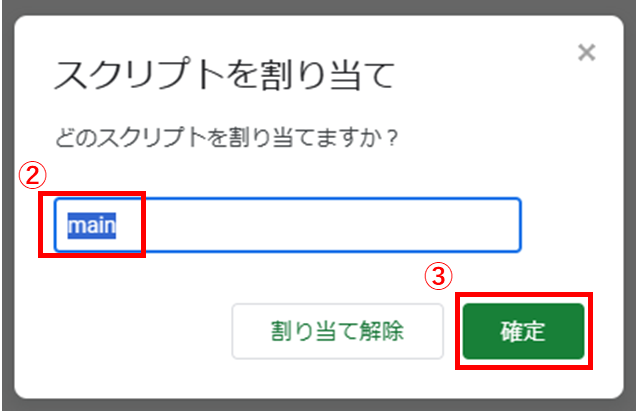
スプレッドシートに実行ボタンを作成して、実行する関数として
mainを割り当てます。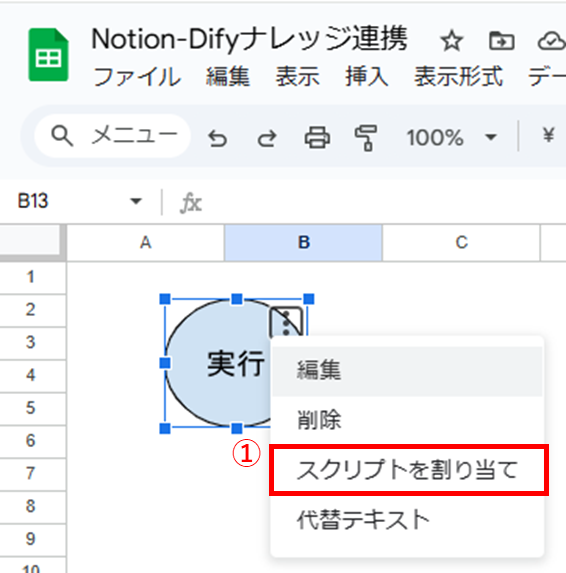
-
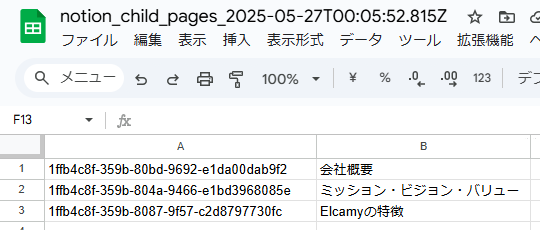
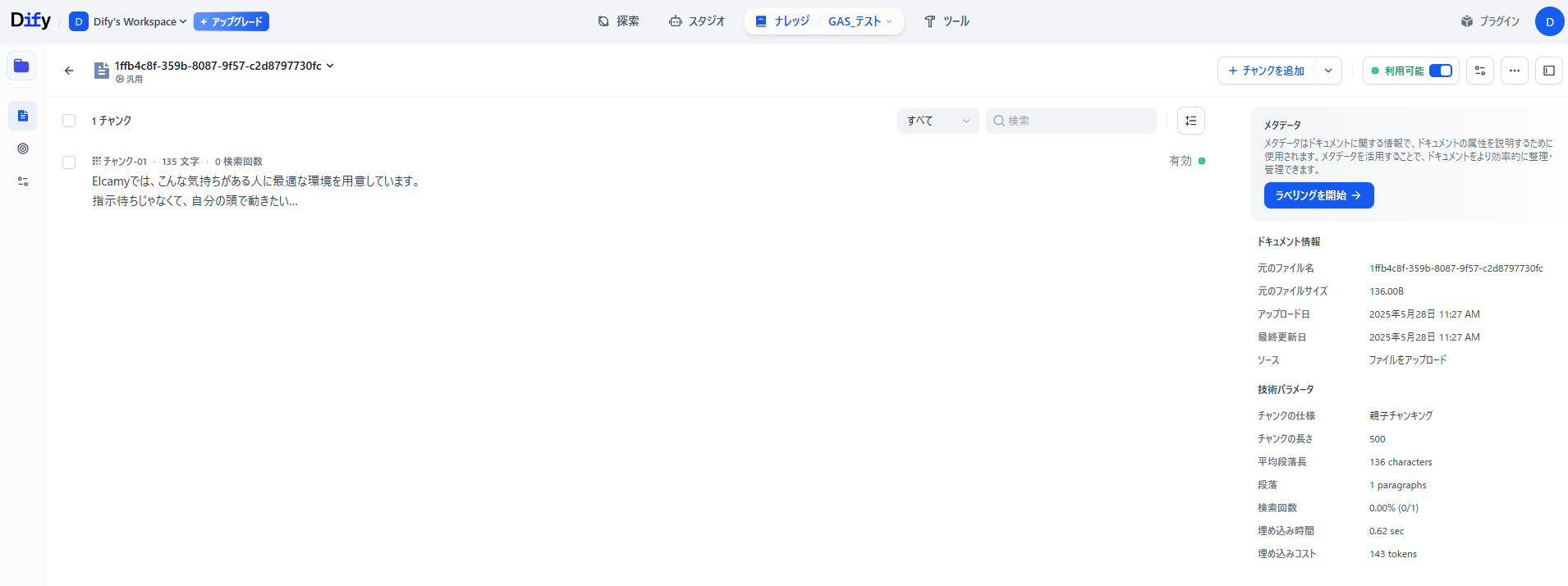
実行ボタンを押すと、Notion子ページIDを取得してからNotionコンテンツをDifyナレッジに登録するまでの一連の流れが実行されます。 その結果として、以下が作成されます。
- Notion子ページIDを保存したCSVファイル(Google Driveフォルダ)
- Difyナレッジベース

おわりに
この記事では、Notionを使ってNotionページのコンテンツを、GASを使ってDifyのナレッジに登録する方法を紹介しました。
今回は、NotionページのコンテンツをDifyナレッジベースに登録するだけの処理を扱いましたが、次のようなカスタマイズが可能です。
- 「毎日●時」や「毎週▲曜日●時」など定期実行する
- Notionの子ページ・子データベースを指定の階層までコンテンツとして取得する
- CSVファイルにNotionページの最終更新日時を追加して、前回登録時から更新があったNotionページに対応するDifyナレッジベースだけを更新する
- 不要なCSVファイルを削除する
「Notionを使っているが、LLMとの連携が上手くできない」「Difyのナレッジを更新する手間を省きたい」などお困りごとがあれば、ぜひ1度ご相談を頂ければと思います。